How To Use Stripchat VR Cams: Complete Setup Guide for Beginners 2026
Most people who try virtual reality live streaming for the first time give up within ten minutes. Not because the technology is too hard, but because nobody explained the setup properly. Stripchat VR cams offer one of the most immersive live streaming experiences available today, and getting started is simpler than most beginners expect.
This guide covers everything you need. Compatible headsets, browser settings, connection requirements, and troubleshooting tips are all included. By the end, you will be watching VR streams confidently on any supported device.
What Are Stripchat VR Cams and How Do They Work
Stripchat launched its VR cam feature to give viewers a 180-degree or 360-degree perspective during live streams. Instead of watching a flat video on a standard screen, you look around the room as if you are physically present.
The technology works through a process called stereoscopic video rendering. Two slightly offset video feeds are captured simultaneously and displayed side by side. Your VR headset splits these feeds between your left and right eyes. Your brain combines them into a single three-dimensional image.
Stripchat VR streams are broadcast at resolutions up to 4K. The platform uses adaptive bitrate streaming, which automatically adjusts video quality based on your internet speed. This prevents constant buffering without you needing to change any settings manually.
Read also How To Buy Stripchat Tokens Safely
The Difference Between Standard Streams and VR Streams
|
Feature |
Standard Stream |
VR Stream |
|---|---|---|
|
Video perspective |
Flat 2D screen |
180 or 360-degree view |
|
Device requirement |
Any browser |
VR headset or smartphone |
|
Minimum internet speed |
5 Mbps |
25 Mbps |
|
Resolution |
Up to 1080p |
Up to 4K |
|
Head tracking |
No |
Yes |
VR streams require more from your internet connection and device, but the experience difference is significant.
Why Stripchat VR Cams Are Growing in 2026
The global VR headset market reached approximately 10 million units shipped in 2023, according to IDC research. As headset prices drop and content availability increases, more users are exploring VR streaming for the first time.
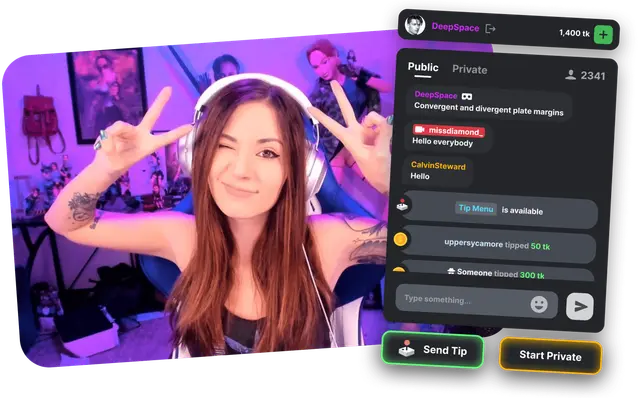
Stripchat has one of the largest VR cam libraries among live streaming platforms. The platform lists hundreds of VR-enabled performers at any given time. Unlike pre-recorded VR content, these are live interactions, which makes the experience fundamentally different from watching a VR film.
Several factors are driving beginner adoption, specifically in 2026. Meta Quest headsets have dropped below 300 dollars for entry-level models. Browser-based VR access has improved significantly, removing the need for dedicated apps in many cases. Mobile VR using smartphone headset holders has also become more stable with better gyroscope support.
Compatible Devices and Headsets for Stripchat VR
Not every VR device works equally well with Stripchat. Here is a breakdown of supported options.
Dedicated VR Headsets
Meta Quest 2 and Meta Quest 3: These are the most commonly recommended headsets for Stripchat VR. Both support the built-in Meta browser, which handles Stripchat VR streams natively without additional software. The Quest 3 offers improved visual clarity due to its higher resolution displays.
HTC Vive and Valve Index: These PC-connected headsets work through the SteamVR environment. You access Stripchat through a VR-compatible browser like Firefox Reality or within a virtual desktop environment. Setup is more involved but visual quality is excellent.
PlayStation VR2: As of 2025, PSVR2 has limited browser support. Using Stripchat VR through PlayStation hardware requires workarounds and is not officially supported.
Oculus Rift S: This older PC headset still functions for Stripchat VR through the Oculus desktop browser. Performance is acceptable for most streams.
Smartphone-Based VR
If you own a compatible smartphone, you can use a cardboard or plastic VR headset holder to experience Stripchat VR without buying a dedicated headset. This works best with phones that have gyroscopes and screens of 5.5 inches or larger.
Compatible smartphones for VR mode:
- iPhone 12 and newer models
- Samsung Galaxy S21 and newer
- Google Pixel 6 and newer
- OnePlus 9 and newer
Open Stripchat in your phone’s Chrome or Safari browser, switch to VR mode on the stream, and insert your phone into the holder. The experience is less immersive than a dedicated headset, but it works well as an introduction.
Read also Is Webcam Model Annaisse in Stripchat?
Desktop Without a Headset
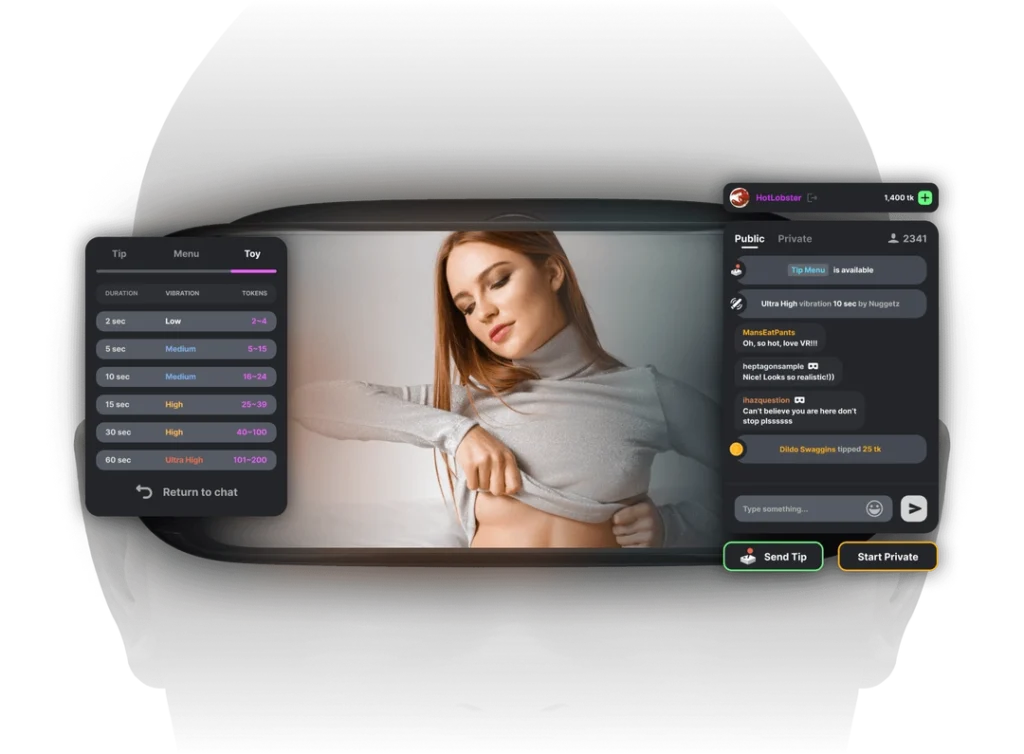
Stripchat also offers a desktop VR viewing mode that works without a headset. You use your mouse or trackpad to pan around the 180-degree or 360-degree scene. This is the easiest entry point and requires no additional equipment.
Step-by-Step Setup Guide for Stripchat VR Cams
Follow these steps based on your device type.
Setup for Meta Quest 2 or Quest 3
- Step 1: Power on your headset and put it on.
- Step 2: Open the Meta browser. Find the browser icon in your app library. If you cannot locate it, search for “Browser” in the Quest search function.
- Step 3: Navigate to stripchat.com. Type the URL directly into the browser address bar. Log into your account.
- Step 4: Filter for VR streams. On the main page, look for the VR category filter. Click it to display only VR-enabled performers. You will see a VR badge on compatible stream thumbnails.
- Step 5: Enter a VR stream. Click on a VR-enabled performer. The stream loads in standard view first.
- Step 6: Activate VR mode. Look for the VR goggles icon in the bottom right corner of the video player. Click it. The stream switches to side-by-side stereoscopic format automatically.
- Step 7: Adjust your view. Look around by physically moving your head. The head tracking responds in real time.
Setup for Smartphone VR Holders
- Step 1: Charge your phone to at least 50 percent. VR streaming drains battery quickly.
- Step 2: Open Chrome on Android or Safari on iPhone. Navigate to stripchat.com and log in.
- Step 3: Find a VR stream. Use the VR filter to locate compatible performers.
- Step 4: Open a VR stream and tap the VR icon. The video splits into two side-by-side images.
- Step 5: Insert your phone into the VR holder. Make sure the screen is centered correctly in the lenses.
- Step 6: Calibrate if needed. Some holders have a focal distance adjustment. Move the lenses until the image appears sharp.
Setup for Desktop Without a Headset
- Step 1: Open stripchat.com in Chrome or Firefox on your computer.
- Step 2: Filter streams by the VR category.
- Step 3: Open any VR stream. Look for a 360 or VR icon on the player.
- Step 4: Click and drag within the video player to pan around the scene. Scroll to zoom in or out on some stream types.
Internet Connection Requirements for VR Streaming
This is the most overlooked part of VR setup. A slow or unstable connection makes VR streams unwatchable regardless of your headset quality.
Minimum recommended speed: 25 Mbps download
Ideal speed for 4K VR: 50 Mbps or higher
Latency: Below 40ms is ideal for a smooth experience
Run a speed test at fast.com before your first VR session. If your speed falls below 25 Mbps, the stream will default to lower quality and the VR effect becomes noticeably less sharp.
Tips for improving connection quality:
Use a wired ethernet connection if possible instead of Wi-Fi. If using Wi-Fi, stay within 15 feet of your router. Close other applications and browser tabs that use bandwidth. Avoid VR streaming during peak internet usage hours in your household.
Common Mistakes Beginners Make With Stripchat VR
Skipping the VR filter: Many beginners try to watch standard streams in VR mode. Standard streams do not have spatial depth. Only streams marked with the VR badge are true VR broadcasts.
Using an outdated browser: Firefox Reality and the Meta browser receive regular updates that improve VR stream compatibility. Keep your browser updated to the latest version.
Wearing the headset incorrectly: The lens spacing on most headsets is adjustable. If the image looks blurry or causes eye strain, adjust the interpupillary distance setting. Most headsets have a physical slider or a software setting for this.
Ignoring resolution settings: Within the Stripchat player, you can manually select stream quality. For VR, always choose the highest available quality your connection supports. The default automatic setting sometimes underestimates what your connection can handle.
Not taking breaks: VR eye strain is real. Beginners should limit sessions to 20 to 30 minutes and take a break before resuming. Looking at a fixed point in the distance for 30 seconds every 20 minutes reduces eye fatigue significantly.
Expert Tips for the Best Stripchat VR Experience
Optimize your physical space. Sit in a comfortable chair that swivels if possible. VR streams with 360-degree coverage reward you for turning your head in all directions.
Use headphones. Spatial audio enhances the VR experience considerably. Even basic stereo headphones improve immersion compared to headset speakers.
Check peak performer hours. VR performers on Stripchat tend to be most active between 8pm and 2am in US Eastern time. European VR performers are most active between 7pm and midnight Central European Time.
Save favorite VR performers. Use the Stripchat follow feature to get notifications when your preferred VR performers go live. This saves you from browsing every time.
Adjust brightness before long sessions. Reduce your screen brightness by about 20 percent from your normal setting. This reduces eye fatigue during extended VR viewing.
Troubleshooting Common Stripchat VR Problems
Stream Loads in 2D Only
This means either the performer has switched off VR broadcasting temporarily or your browser does not support the VR player. Try refreshing the page or switching to a different supported browser.
Blurry or Double Image
Check your interpupillary distance setting on your headset. This should match your own eye spacing. Most adults fall between 60mm and 70mm. Adjusting this single setting fixes blurry VR images in most cases.
Constant Buffering
Run a speed test immediately. If your speed is below 25 Mbps, switch to a wired connection or reduce other network usage. You can also manually lower stream quality from 4K to 1080p in the player settings, which reduces buffering significantly.
VR Icon Not Appearing on Stream
Not all Stripchat streams support VR. Only performers with VR-compatible camera equipment can broadcast in VR mode. Use the VR category filter on the main page to find confirmed VR streams. The VR badge on the thumbnail confirms VR support.
Frequently Asked Questions
Do I need a VR headset to watch Stripchat VR cams?
No. Stripchat VR streams work in desktop browsers through mouse-controlled panning. You can also use a smartphone without a headset by holding it and moving it around. A dedicated VR headset gives the best experience but is not required to access VR content.
Which VR headset works best with Stripchat in 2025?
The Meta Quest 3 is the most recommended option for beginners. It is wireless, requires no PC, includes a built-in browser, and offers excellent display resolution. The Meta Quest 2 is a more affordable alternative with slightly lower display quality.
Why does my Stripchat VR stream look blurry?
The most common causes are incorrect interpupillary distance settings on your headset, slow internet speed, or using a browser that does not fully support WebVR. Adjust your headset’s lens spacing first, then check your internet speed, and update your browser if the problem continues.
Can I use Stripchat VR on a laptop without a headset?
Yes. Open any VR-enabled stream on stripchat.com in Chrome or Firefox. The player shows a VR icon. Click it and use your mouse to look around the 180 or 360 degree scene. The experience differs from a headset but the VR content is fully accessible.
Is Stripchat VR content available for free or does it require tokens?
Some VR streams are viewable in public mode without tokens, though the performer may have private content that requires tipping. The VR format itself does not cost extra. Standard Stripchat token rules apply to tipping and private shows, regardless of whether you watch in VR or standard mode.
Conclusion
Getting started with Stripchat VR cams takes less than ten minutes once you understand the basic requirements. The right headset or device, a stable internet connection above 25 Mbps, and a supported browser are the three things that determine your experience quality.
Begin with the desktop mouse-controlled VR mode if you want to try VR content before investing in a headset. Upgrade to a Meta Quest 2 or Quest 3 when you are ready for full head-tracked immersion. Follow the setup steps in this guide, avoid the common beginner mistakes, and apply the expert tips to get the most from every session.